
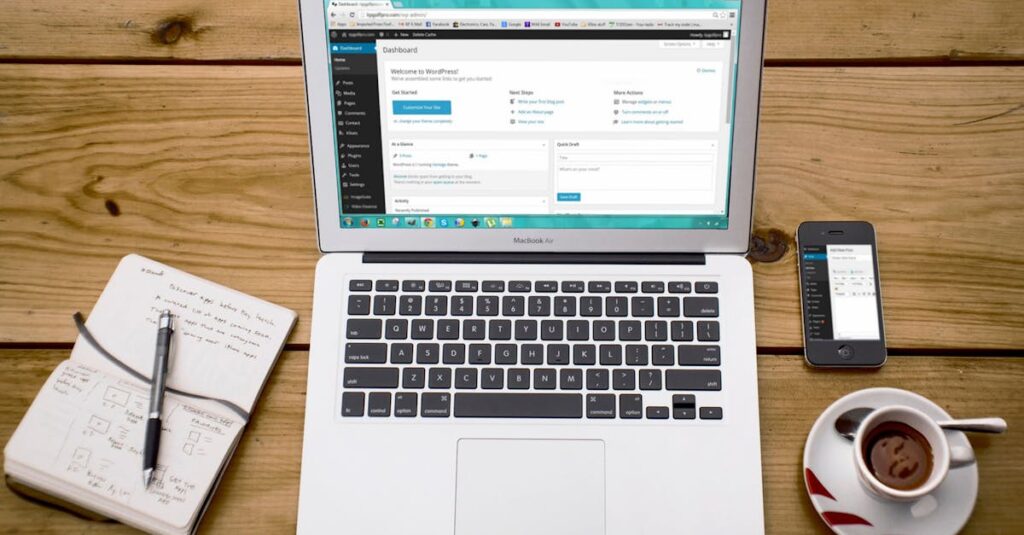
Navigating the digital world from the palm of your hand has become second nature, especially with the versatility of smartphones like the iPhone. As a WordPress blogger, ensuring your content looks perfect on mobile devices is crucial. But how do you preview your WordPress blog on your iPhone without a hitch?
I’ve been there, wondering if my carefully crafted posts maintain their allure on smaller screens. Luckily, previewing your WordPress blog on an iPhone is simpler than you might think. With the right tools and a few quick steps, you can ensure your blog captivates readers, no matter where they are. In this article, I’ll guide you through the process so you can confidently showcase your content in its best light on any device.
Understanding WordPress Blog Preview on iPhone
Previewing a WordPress blog on an iPhone offers bloggers a way to ensure their content appears correctly on mobile devices. Accessibility on different screens affects user experience significantly. The WordPress app, downloadable from the App Store, helps with this process by providing a friendly interface for monitoring blog content. Additionally, bloggers access previews through their iPhone browsers, ensuring compatibility with both Safari and Chrome.
Exploring the iPhone WordPress App reveals intuitive options for checking how the blog posts appear. The app integrates seamlessly with WordPress sites, requiring only login credentials to start. Frequent updates enhance the app’s reliability and performance, facilitating an accurate preview of current blog designs and structures.
Accessing the blog through an iPhone browser gives a different perspective of the user interface. Bloggers type their website’s URL into the browser’s address bar. This method displays the mobile version of the site as visitors see it, revealing any layout or functionality issues that might affect reader engagement.
Understanding these processes empowers bloggers to fine-tune their content for better mobile display and user interaction.
Setting Up Your WordPress Account
Accessing your WordPress blog on an iPhone is straightforward with the right setup. Start by ensuring your WordPress account is ready for mobile use.
Installing the WordPress App
Download the WordPress app from the App Store to streamline blogging. Search “WordPress” and install the official Automattic app, noted for its reliability and integration. Updates improve functionality regularly, so keep it up to date. This app offers an intuitive interface for managing and previewing your content on mobile devices, which enhances accessibility and user interaction.
Logging Into Your WordPress Site
Open the WordPress app and select “Log In.” Enter your WordPress login credentials connected to your site. Ensure your site URL is correct for seamless access. The app syncs your data, letting you manage and preview blog content easily. Once logged in, navigate to the dashboard to explore options for viewing and editing posts, ensuring optimal display on your iPhone.
Previewing Your Blog on iPhone
Viewing your WordPress blog on an iPhone ensures your content looks great on mobile screens. I’ll outline easy steps to access preview features and use Safari for an optimal preview experience.
Accessing the Preview Features
In the WordPress app on an iPhone, navigate to your site list by tapping the “My Sites” icon. Select your blog and access the “Blog Posts” section. You can preview any post by tapping it and choosing “Preview” from the options. This feature shows how posts appear on an iPhone, helping refine formatting and visibility.
Using Safari to Preview
Open Safari and type your blog’s URL in the address bar. Enable “Request Desktop Site” under the “AA” menu in the top left corner to view your blog’s desktop layout. This helps compare desktop and mobile views, providing insights for format adjustments and responsiveness improvements.
Troubleshooting Common Issues
Previewing a WordPress blog on an iPhone can be seamless, but common issues may arise. Understanding how to tackle these problems ensures a smooth experience.
Solving Login Problems
Incorrect login credentials frequently cause access issues. I verify my username and password, ensuring they match my WordPress account. If problems continue, I reset my password through the “Forgot Password” link. Network issues also impact login; I confirm my internet connection is stable. Clearing cache and data from the WordPress app sometimes resolves persistent login problems.
Fixing Display Errors
Inconsistent display can affect how my blog looks on mobile screens. If images don’t render correctly, I check the mobile optimization settings in my WordPress theme. Sometimes, I discover missing media or improperly formatted content by testing with different themes. I use the “Request Desktop Site” feature in Safari to compare versions, ensuring no display elements are omitted. Resizing large images and optimizing formats increases loading speed and display quality.
Tips for Optimal Viewing
Previewing a WordPress blog on an iPhone requires attention to screen resolution and responsive design. Responsive themes ensure that the layout adapts seamlessly to various screen sizes. Testing different themes helps identify which one offers the best visual appeal on mobile devices. Utilizing high-quality images enhances the content but resizing them for mobile prevents slow load times. Compressing images while maintaining resolution can improve both speed and quality.
Considering mobile typography is important for readability. Using larger fonts prevents users from straining their eyes on smaller screens. Fonts should be legible, avoiding overly decorative styles that can hinder comprehension. Testing color contrast between text and background ensures content is accessible to all readers, including those with visual impairments.
Enabling mobile-friendly plugins enhances functionality. For instance, plugins for image optimization or lazy loading improve performance on smaller devices. Keeping plugins updated prevents compatibility issues, providing a stable viewing experience. Monitoring plugin impact on load time maintains blog efficiency.
Using browser developer tools simulates mobile viewing on desktops. This allows for detecting potential display issues before they affect iPhone users. Adjusting CSS and HTML through these tools enables on-the-fly fixes. Checking browser compatibility ensures consistent presentation across different apps like Safari and Chrome.
By focusing on these tips, I enhance how my WordPress blog displays on iPhones, ensuring an optimal reading experience for my audience.
Conclusion
Previewing your WordPress blog on an iPhone is an essential step to ensure your content looks great on mobile devices. By using the WordPress app and iPhone browsers, you can easily check how your posts appear to your readers. The app’s intuitive interface and seamless integration make it a reliable tool for managing your blog on the go. Remember to keep the app updated and troubleshoot any issues promptly to maintain a smooth user experience. By following the tips and steps outlined, you’ll be well-equipped to present your blog in the best possible light on iPhones, enhancing engagement and satisfaction among your audience.
Frequently Asked Questions
Why is it important to preview my WordPress blog on an iPhone?
Previewing your WordPress blog on an iPhone is crucial to ensure your content displays correctly on mobile screens. This helps in providing a seamless user experience, as most readers access content via mobile devices. By checking your blog’s appearance on smaller screens, you can make necessary adjustments to design and layout, maintain consistency across devices, and improve accessibility for a broader audience.
How do I preview my WordPress blog using the WordPress app?
To preview your blog using the WordPress app, start by downloading the app from the App Store. Once installed, log into your WordPress account and navigate to the “My Sites” icon. Select your blog and choose “Preview” for individual posts. This feature allows you to see how your content would appear on an iPhone, ensuring it looks appealing and functions well on mobile devices.
Can I use Safari on my iPhone to preview my blog?
Yes, you can use Safari to preview your blog. Enter your blog’s URL in Safari and enable the “Request Desktop Site” feature to compare layouts. This helps you see the differences between mobile and desktop views, allowing you to adjust your design for better responsiveness and accessibility across different screen sizes.
What should I do if I face login issues on the WordPress app?
If you encounter login issues, first ensure your credentials are correct. Check your internet connection for stability and try clearing the app’s cache. These steps typically resolve common login problems, allowing you to swiftly access your WordPress account and manage your blog’s content effectively through the app.
How can I enhance my blog’s display quality on iPhones?
Enhance display quality by optimizing images for mobile viewing. Resize large images to ensure faster loading times and check your mobile optimization settings. Experiment with different themes and use high-contrast colors for better readability. Testing various formats on your iPhone will help maintain a smooth and visually appealing blog presentation.
Are there any tools for simulating mobile views on a desktop?
Yes, browser developer tools can simulate mobile views on desktops. These tools let you switch between different devices, including iPhones, to inspect how your blog appears. By utilizing these features, you can detect and fix display issues early on, ensuring a consistent and well-designed look across both mobile and desktop browsers.